Traintastic will not run, W11

I have download and installed Traintastic on W11 laptop and cannot get the client to run, although the server is running okay.

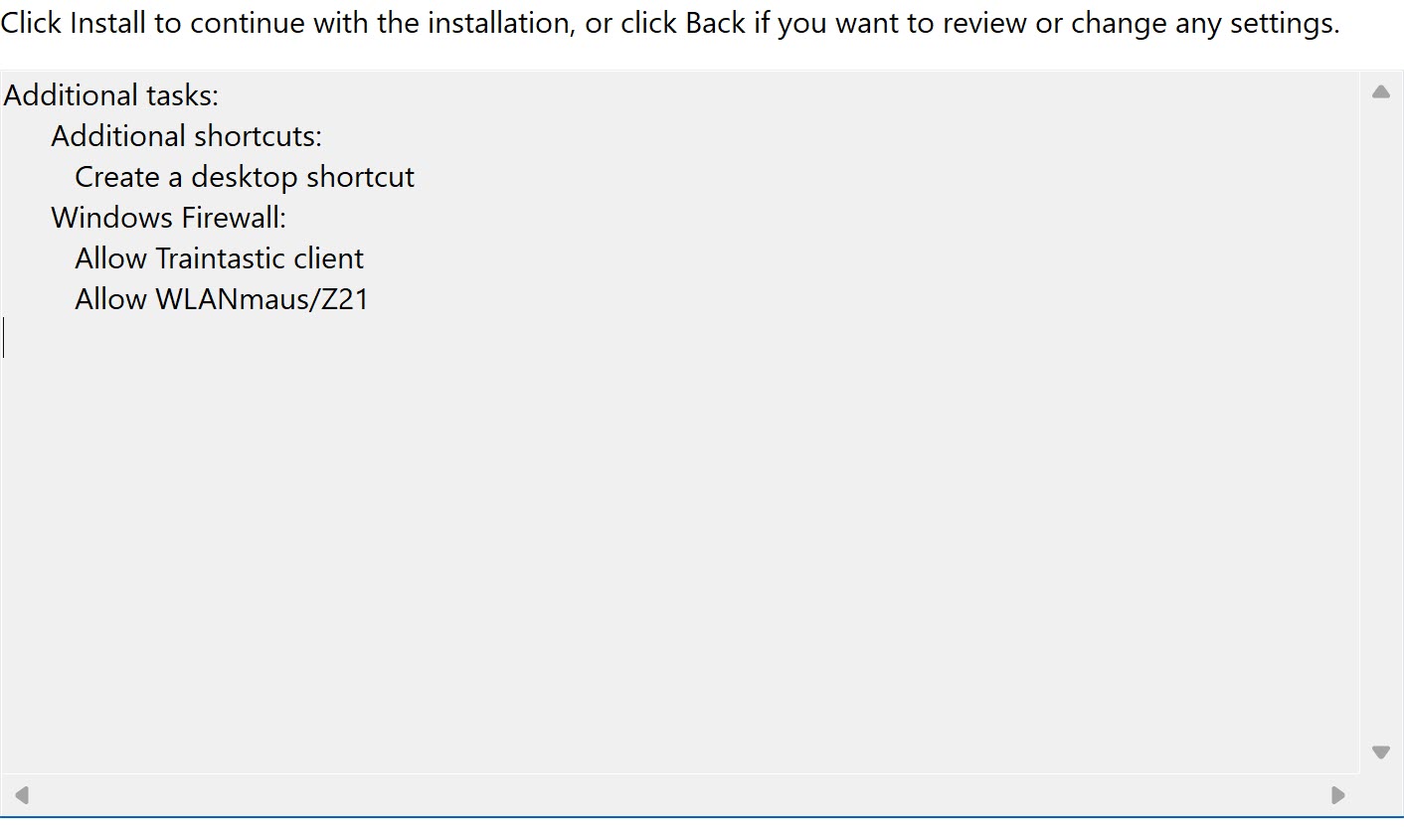
The installation followed the manual documentation, the only exception being the Step 8 window which was missing the Setup type and Installation items as shown. This didn’t seem to affect anything

The server runs okay and the message ‘operating in the background’ appears, but starting the client briefly brings up the opening window which then promptly disappears after a second or so.

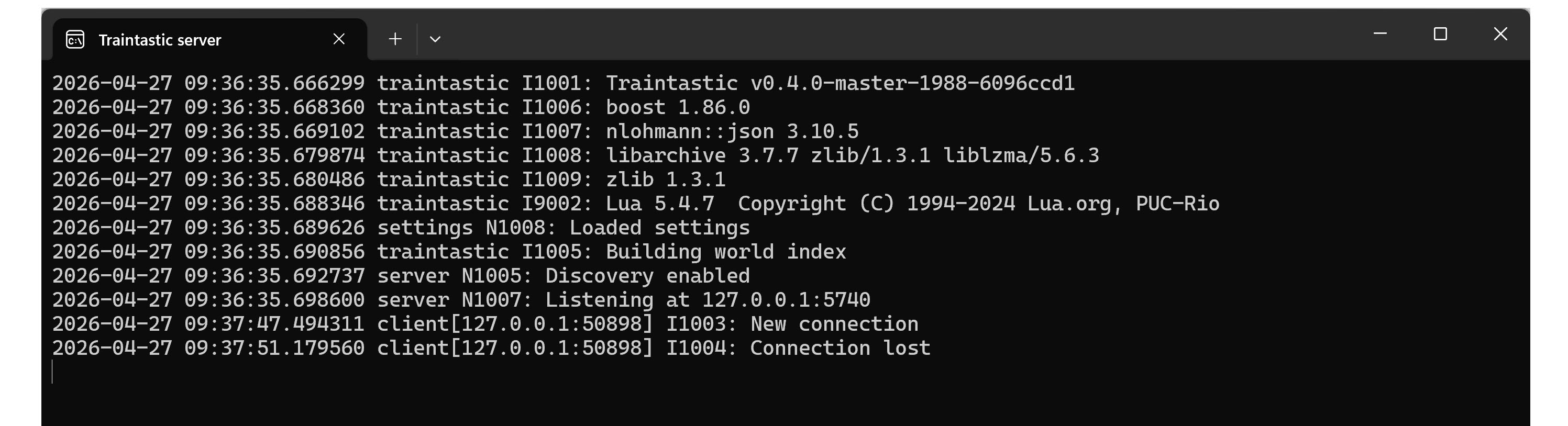
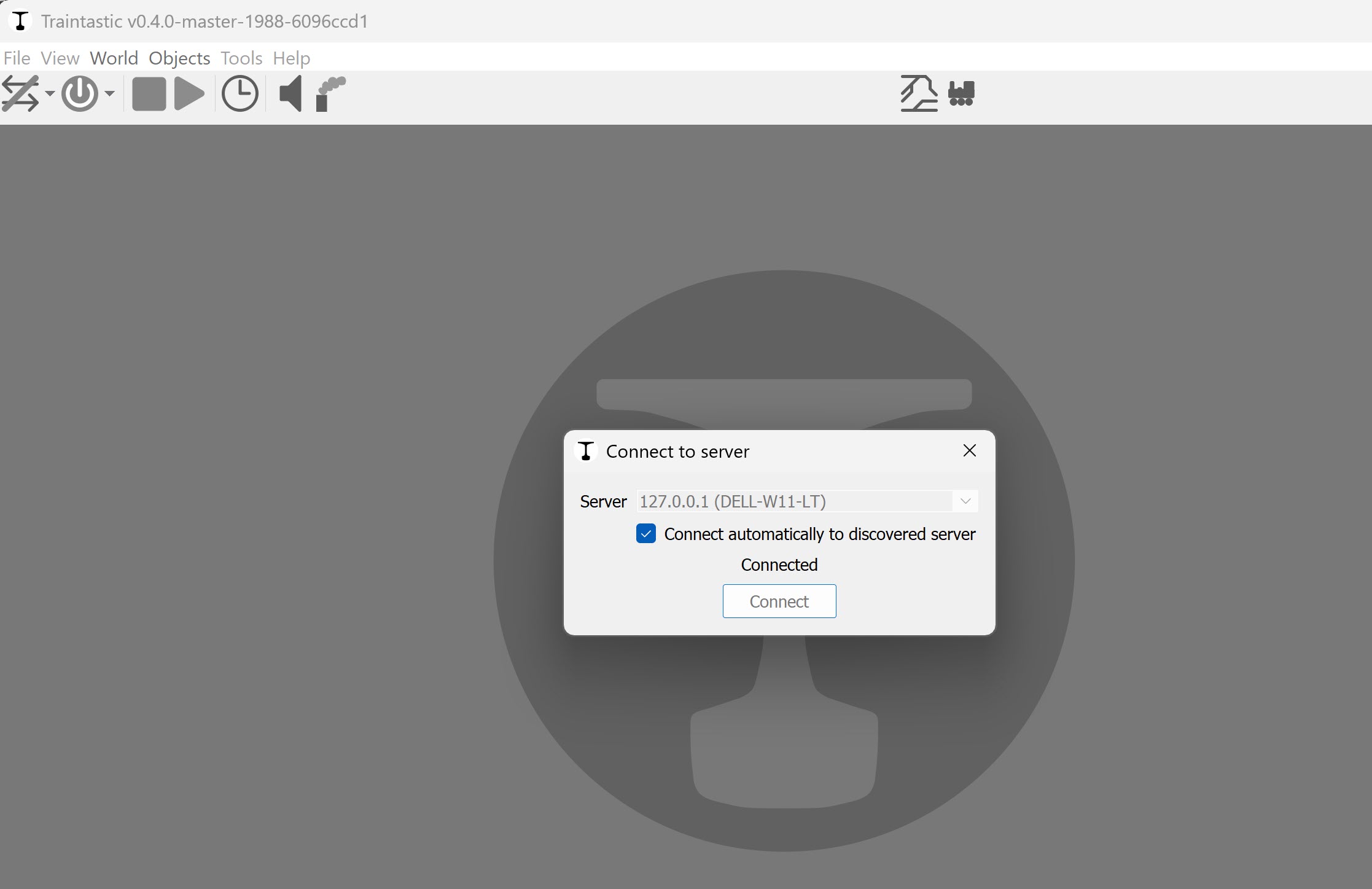
These are the screenshots of the server command window and the brief client window.

Can anyone advise what I am doing incorrectly please?

Regards, Neale.

I would recomend you to uninstall this traintastic build and try the 3.1 release from github. It could just be a problem with this 4.0 development build something could sliped in that makes this crash. New dev build almost come daily.

Is your laptop a x86 or an arm machnie? Or do you have some custom network software that could interfear os some agrassive antivirus that is blocking conections

I did try the 3.1 release and the same thing happened which is why I tried the 4.0 development build.

The laptop is an x86 machine. I suppose it could be the ESET antivirus. I will try disabling that.

Okay, I reinstalled 3.1 release just to be sure, disabled both protection and firewall in the AV but it didn’t seem to make any difference.

With the server running, I repeatedly started the client and once it did start. Sometimes the displayed message was it trying to connect to the server and others it said connected but still quit. This was with and without the AV enabled. On the occasion it did work I was able to create a word and board.

I will try again on another PC but any further ideas would be most helpful.

One thing that could als cause problems is a bad uninstall. Make sure that the traintastic server that is running in the background is fully stopped before starting the unistaller this can sometimes cause in my expiriance that the old version of traintasitc server stays installed. You can stop it in the hidden apps part of the taskbar on the wight in windows 11 or in taskmanager.

If this still dosnt work then unistall the apps and after this delete these folders :file_folder: if still presend (will delete all data)

  • C:\Program Files\Traintastic
  • C:\ProgramData\traintastic
  • C:\Users\!UserName!\AppData\Roaming\Traintastic
  • C:\Users\!UserName!\AppData\Local\traintastic (contains the world data)

Hope this can help if not could you post the whole specs of your PC its very unlikely but it could be some type of hardware compatibality issiue if its some very now or very old hardware. You can find all needed inmformation in Settings > System > About.

@reinder do you have and other debuging tips? I know we dont have a good crash log at least i never managed to find any that worked easily.

Hi Neale.

welcome to the Traintastic forum!

The error message is “lost connection”. Probably there are error messages in the event viewer of Windows. Look for error code 10054 and 10053. If the TCP/IP stack lost the connection, a Traintastic error log could not show more.

But some things more:

Windows >= 10 has the firewall and Microsoft Defender. You don’t need an extra antivirus package, it’s make more trouble, than it helps. The ip address 127.0.0.1 hostname localhost is only local, but the TCP/IP stack is the same as for every network connection.

You have started the server in a console window, do the same with the client. Are there errormessages? As you see, there is for ~4s a connection. If the firewall would block this, you can’t connect.

Do you have other software running on port 5740? Look with this in the console:

netstat -ano | findstr 5740

Deinstall the software and reinstall it, but if you install it, don’t use a double click, use the right mouse key and install “as Administrator”, otherwise it coould been that some registry entry wouldn’t correct written.

Sorry, I can’t try it myself, I don’t have a Windows PC at all; I only use a virtual machine when I need Windows and I have no Windows 11, only a old Win 10 version.

Greetings, Tom

Hi Neale,

Welcome to the forum!

Sorry to hear that it isn’t working like it should, I had a good look at the source code based on the I1004: Connection lost message. Reason for this message is that the connection is gone. If it is gone due to an error it will be logged.

Traintastic runs a webserver, could you start Traintastic server, do not start Traintastic client and then goto http://127.0.0.1:5740/manual/en/index.html ? You should get the Traintastic manual webpage, that might help give us a hint why it isn’t working.

If you have another PC you can try it on, that would be nice.

Greetings,
Reinder

Thank you all for your suggestions and comments.

kamil00110. I followed your suggestions and uninstalled Traintastic followed by deleting the listed folders. You were correct in saying the server was running in the background and the only way I could stop it was using the task manager. Is there any other way of stopping the server?

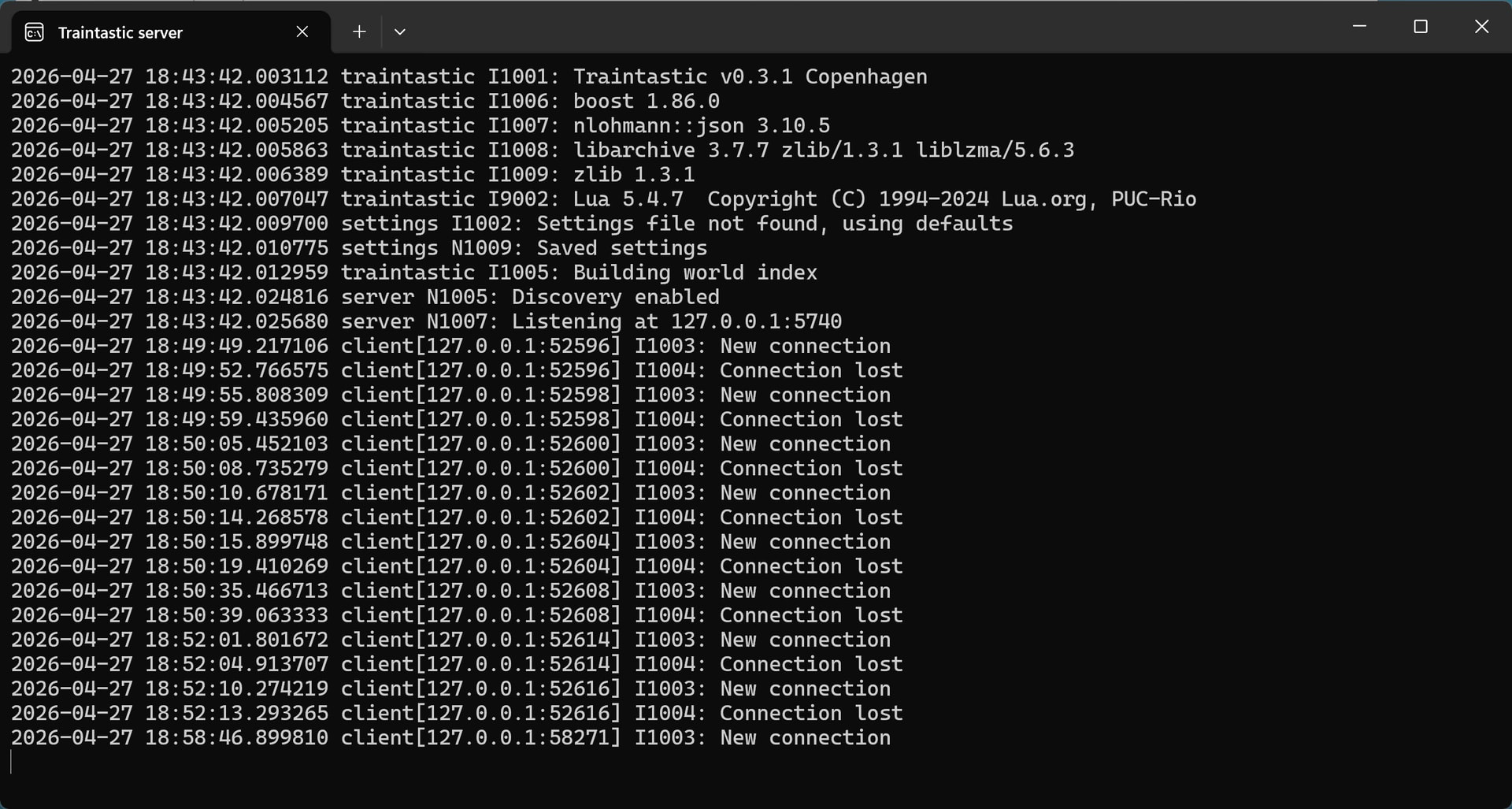
Starting afresh I installed 3.1 version using administrator privileges as suggested by Tom. Started the server then the client and the first startup was slightly different as several information popups appeared before the server connection box. However, within a second or two the client window disappeared. I then tried starting it several times and on the 9th attempt it started and stayed running. This is the server command window.

The next and following attempts failed.

As far as the laptop is concerned it is a 1 year old Dell XPS so the system is new in most respects. This is the spec.

Device name DELL-W11-LT
Processor Intel(R) Core™ Ultra 9 185H (2.50 GHz)
Installed RAM 32.0 GB (31.5 GB usable)
Graphics card NVIDIA GeForce RTX 4060 Laptop GPU (8 GB)
Intel(R) Arc™ Graphics (128 MB)
Storage 303 GB of 954 GB used
Device ID 38CB33B5-9E21-4998-95A7-1359CF66FC4E
Product ID 00342-21337-86711-AAOEM
System type 64-bit operating system, x64-based processor
Pen and touch Touch support with 10 touch points

Tom. Regrettably much of what you suggest it outside my skill set, although I did run the port 5740 test.

C:\>netstat -ano | findstr 5740
TCP 127.0.0.1:5740 0.0.0.0:0 LISTENING 5816
UDP 0.0.0.0:5740 *:* 5816

Turning off the AV didn’t make any differences.

Reinder. I have followed the manual instructions to the letter and cannot see anything that I am doing differently or wrongly.

Today I will try installing on a desktop PC which is 6 months old and report back. Again a Dell which has a good specification.

Regards,

Neale.

Well I have just tried running Traintasic on the desktop and the results are the same. The client window appears then disappears. These are the PC details:

Device name DELL-W11-DT
Processor Intel(R) Core™ Ultra 7 265 (2.40 GHz)
Installed RAM 32.0 GB (31.5 GB usable)
Graphics card NVIDIA GeForce RTX 5070 (12 GB)
Intel(R) Graphics (128 MB)
Storage 221 GB of 954 GB used
Device ID AAB25FA0-F21B-412F-842E-37CA703A8C0B
Product ID 00355-63575-52343-AAOEM
System type 64-bit operating system, x64-based processor
Pen and touch No pen or touch input is available for this display

Edition Windows 11 Pro
Version 25H2
Installed on ‎05/‎01/‎2026
OS build 26200.8246
Experience Windows Feature Experience Pack 1000.26100.297.0

I am at a loss now.

Regards,

Neale.

Hi Neale,

Microsoft had a bug with updates from oct 2025 in 25H2. The patches KB5066835 and KB5065789 are broken and the result are unstable or no connections to localhost 127.0.0.1

Microsoft released a known issue rollback for this bug. If the patches are installed on your systems but never do the KIR, then I would say, it‘s a Windows 11 Bug. You can see KIR‘s only with powershell commands and if your computers are domain members, a GPO could block a KIR.

These patches results in ERR_CONNECTION_RESET if a connection is made to 127.0.0.1 You could find additional infos about this bug and how to fix at microsoft.com But first, look if these or one of these KB are installed on your computers. You could do it in an console window:

wmic qfe list | find „KB066835“

wmic qfe list | find „KB065789“

Greetings, Tom

1 Like

Hello Tom,

Thanks for the comments. I understand the outline of what you are suggesting but not the detail, sorry.

When I run either of the command lines I get: ‘wmic’ is not recognized as an internal or external command.

Did a search on finding KBs and using Terminal (Admin) withg the command line “Get-HotFix -Id KB5066835” and “Get-HotFix -Id KB065789” both reported that either were not present.

Hope that makes sense.

BTW what is KIR please.

Regards,

Neale.

Hello Neale,

okay, the patches are not directly installed. KIR is “known issue rollback”. If MS has an error within patches they recall the patch with a KIR. wmic is the WMI version of get-hotfix. I am not familiar with Windows 11 and will never use it :smirking_face: But I read, that this is a discontinued tool and not available for Windows 11.

However, it seems you have not the Windows bug with the localhost interface, because you have not the patches installed, it was a try.

I think, a good way to find a solution is wireshark. If you like you can install Wireshark from wireshark.org

Then use a admin console and type:

“C:\Program Files\Wireshark\tshark” -D It shows a list of all network devices. Search for the <id> (the first number) of the loopback adapter and note the id number.

Then type:

“C:\Programm Files\Wiresharkt\tshark” - i <id> -a duration:60 -w <traintasticcapture.pcap>

<traintasticcapture.pcap> is only the filename, add a path, please.

Before you start the recording, start the traintastic server and after it is up, tshark. Then you have a time of 60s (duration) to start the client. tshark ends automatically after 60s. You could extend the time, if it is not enough to record the lost of connection.

This records all traffic of the loopback device (127.0.0.1) to the file traintasticapture.pcap. We could load this file into Wireshark, if you send it to us and analyze what happens with the network connection.

@Reinder: Hope the options for wireshark / tshark are correct, please correct me :slight_smile:

Btw: At MERG forum is a thread where they have problems with MMC and Windows 11.

Greetings, Tom
Hi,

I did a bit of reading about the localhost connection bug, it surfaced in Oct 2025 and seems HTTP/2 related. Traintastic client connect via HTTP/1 + WebSocket to the Traintastic server…so that is different and some time ago, but it is similar to this issue :thinking:

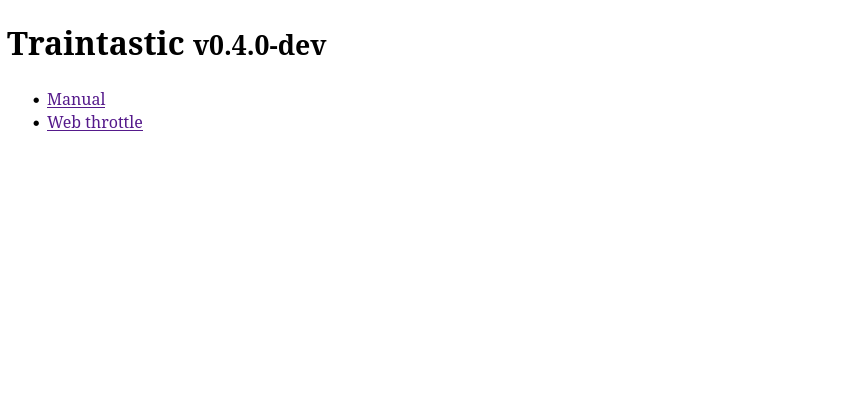
I wonder if the Traintastic server page is reachable, @Neale if you visit http://127.0.0.1:5740 with your browser, you should get something like:

@DL7BJ filtering only traffic for port 5740 would be a nice addition.

I’m not at home this week, don’t have access to a W11 machine :frowning:, we have about six W11 PC/laptops, so I’ll try them all.

That’s interesting, this means it is most likely Windows related…but really annoying :frowning:

Greetings,
Reinder

Hello Reinder,

Using http://127.0.0.1:5740 does, in my case, produces:

Traintastic v0.3.1 Copenhagen

I haven’t done the tests Tom suggested yet. Perhaps tomorrow.

I use MMC all the time now and I believe the problem arose because at the time of the latest release, happened to coincide with a change in the location of JSON version numbers on the source site so the installation script was looking in the wrong place and looping. It wasn’t a Windows problem per se.

Regards,

Neale.

I have now tried Traintastic on 5 Windows PCs. 2 Desktops and 3 laptops. 1 DT and 1 LT are several years old and have W10 Pro. 1 LT uses AMD hardware, W11 and is 4 years old. The other two are 1 year old or less and both use W11. All are Dell with different hardware builds.

The only thing that they have in common is the use of ESET Internet security. I have asked ESET support if this could be a factor, although I have tried disabling both the AV and the Firewall to no effect.

It does seem that the problem I am having is the client is not finding or seeing the server except on the odd occasion.

Regards,

Neale.

ESET have given a preliminary response and said, “As it is intermittent it is unlikely to be ESET blocking. Generally ESET will either block or allow, with no grey area in between.”

They have asked for a system log just to be sure which I will carry out later.

I would really like to eliminate the AV first.

Regards,

Neale.

He Neale,

do you have the same problem with Windows 10? I have a Windows 10 VM and could test it, too.

Greetings, Tom

I have discovered that if I disconnect the Wi-Fi or network to the hub then Traintastic works every time. So the problem is something to do with my home network rather than the program.

AV support have also come up with some suggestions concerning the network so I will have a look at that first. Failing that I do have someone who knows a lot more about such things so will see if they can help.

BTW forgot to say the MMC problem with Windows was sorted with an updated release of the MMC install/update script.

Regards,

Neale.

Hi Neale,

That cannot be the cause because 127.0.0.1 is localhost. There is no routing involved and no external interface can access it. It must be something that exists on every machine, in the network stack, which is deactivated, if you disable the interfaces or disconnect.

ESET installs kernel-level network filter drivers (NDIS/WFP components) that operate within the Windows networking stack. These filters can intercept and influence TCP connections at a low level, including loopback traffic (127.0.0.1), because local sockets still pass through the Windows Filtering Platform when network interfaces are active.

Open a console and type netcfg -s n

If you found something like ESET NDIS filter drivers, WFP callout modules, or entries such as epfw, epfwlwf, or similar vendor-specific network filtering components, this indicates that ESET’s network stack integration is still active in the system.

Uninstall, not only deactivate, really uninstall ESET, reboot and try than Traintastic on one of your computers.

Greetings, Tom

@Reinder I just install Traintastic with my Windows 10 VM for Anyrail. There was not the newest VC Redistributable installed. The traintastic-server ends without a message, if it not exits. I believe this can be checked with Innosetup, so that a message appears immediately during installation, that something is missing.